
FlowGuide · Chrome extension
by ThinkFlow
Do it once. Get the guide.
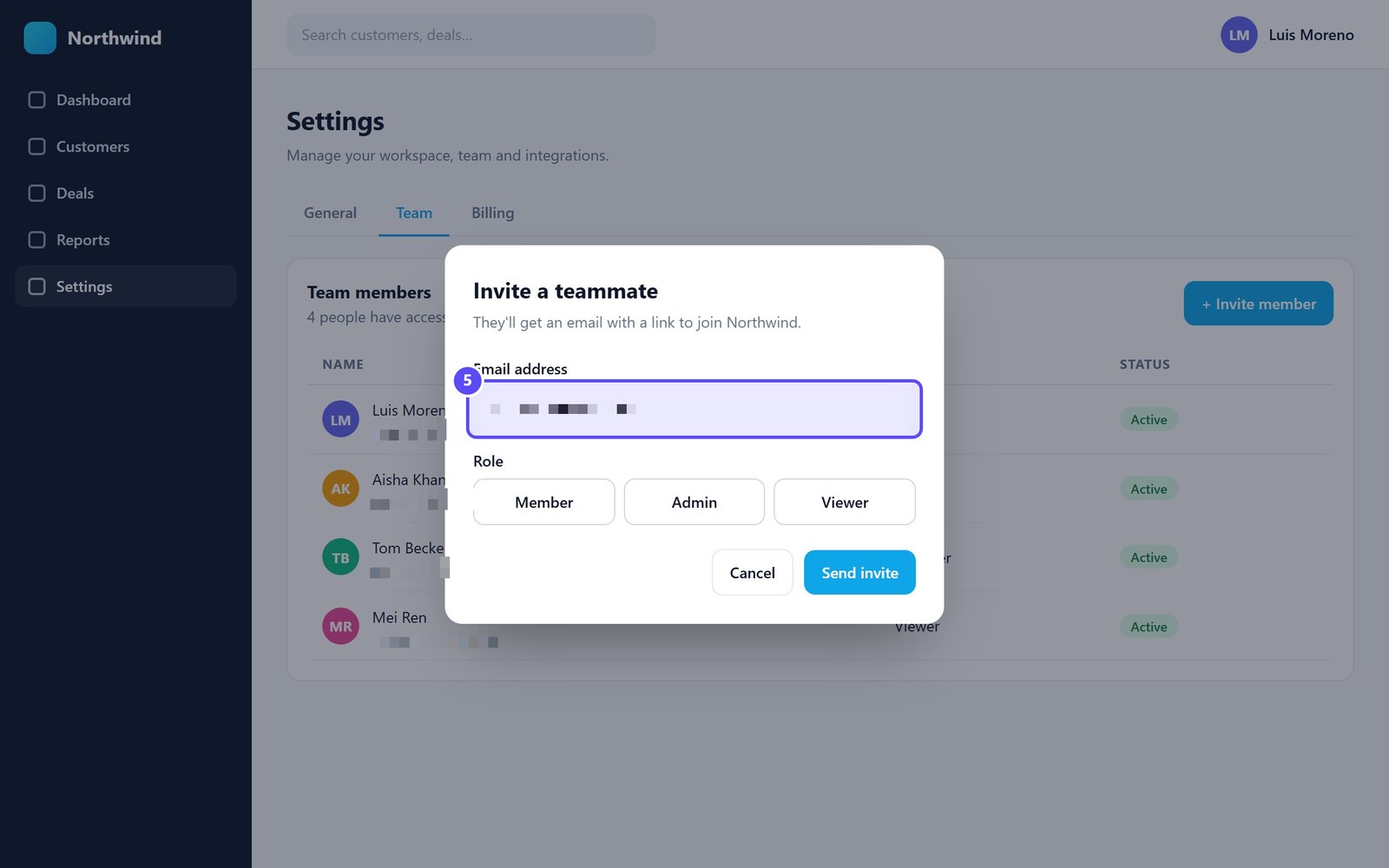
FlowGuide watches the task you do in your browser and writes the how-to for you: numbered steps, annotated screenshots, ready to share. It all happens on your computer and stays there.
- ✓No sign-up
- ✓No tracking
- ✓Works offline
- ✓Free
How it works
Three steps, no setup
Pin and press record
Add FlowGuide to Chrome, open the side panel from the toolbar and press Start recording. Or just hit Alt+Shift+R.
Do the task once
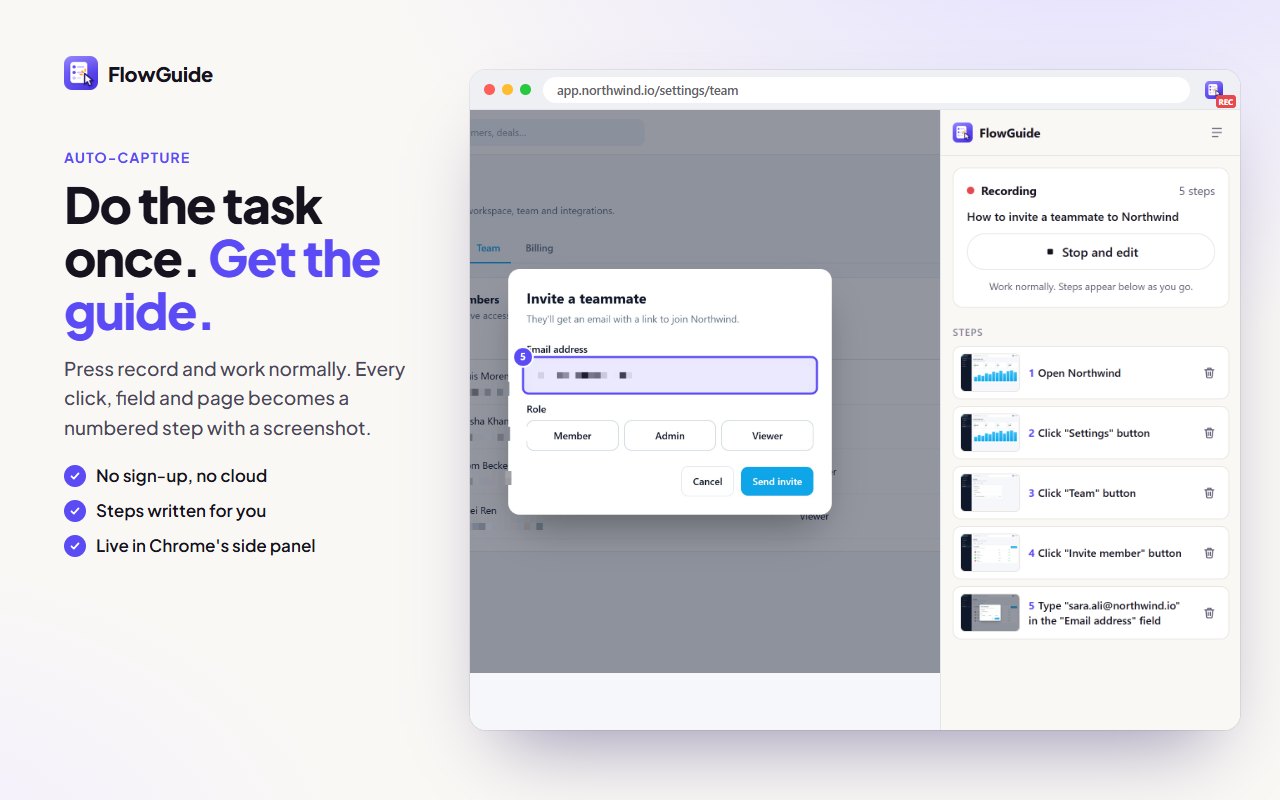
Click, type and move between pages like you always do. Each action shows up in the side panel as a numbered step with a screenshot.
Polish and share
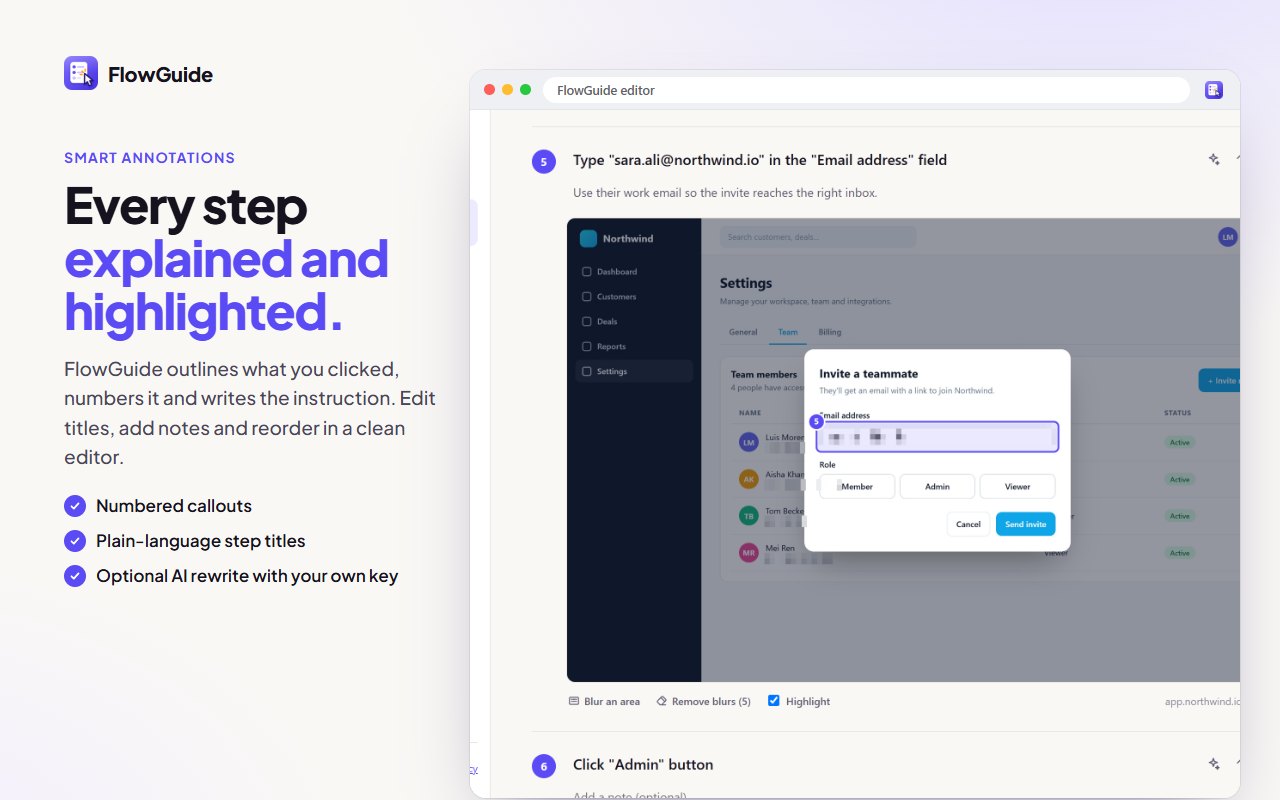
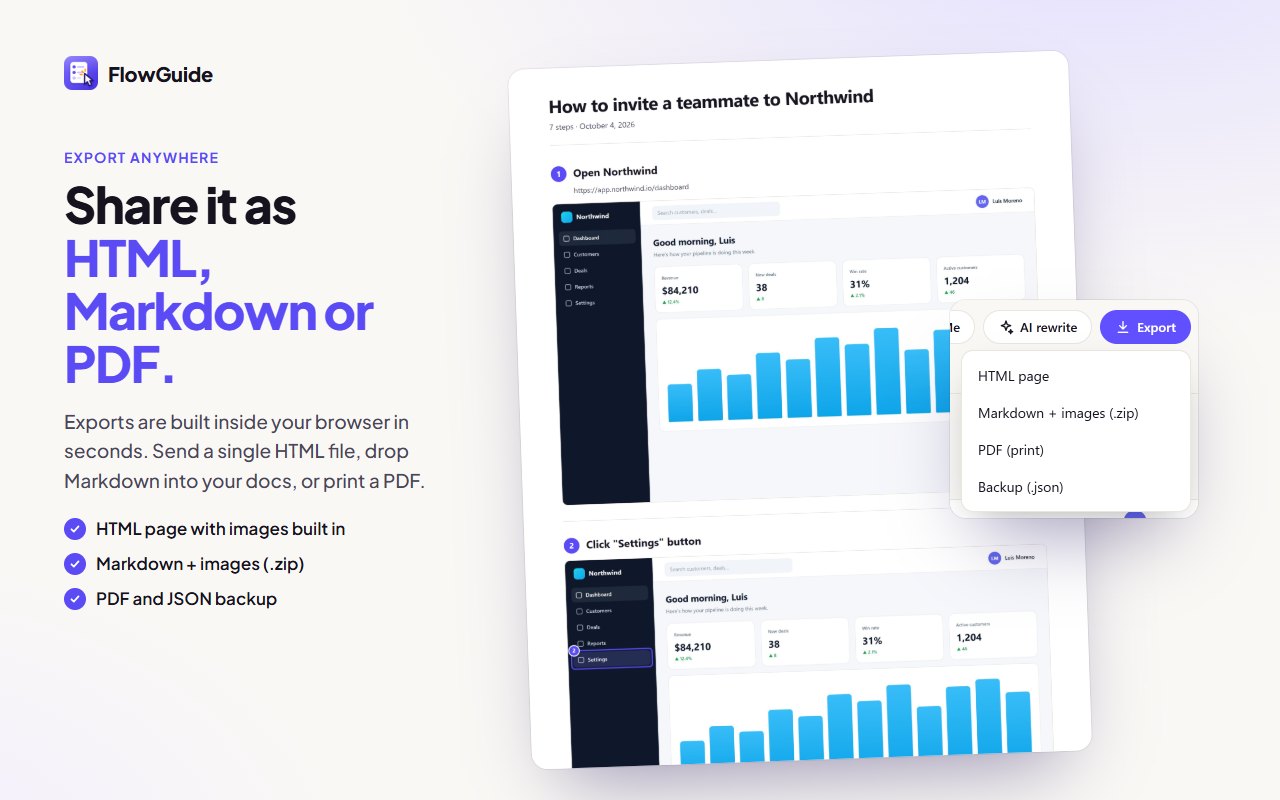
Fix a title, add a note, blur anything private, then export a clean HTML page, Markdown with images, or a PDF.
See it in action
From task to guide in under a minute
Features
Made for documenting real work
Captures everything
Clicks, typed fields, dropdowns, the Enter key, new pages and tab switches each become a step, written in plain language.
Annotated screenshots
The element you used is outlined and numbered on every screenshot, so readers know exactly where to look.
Smart Blur
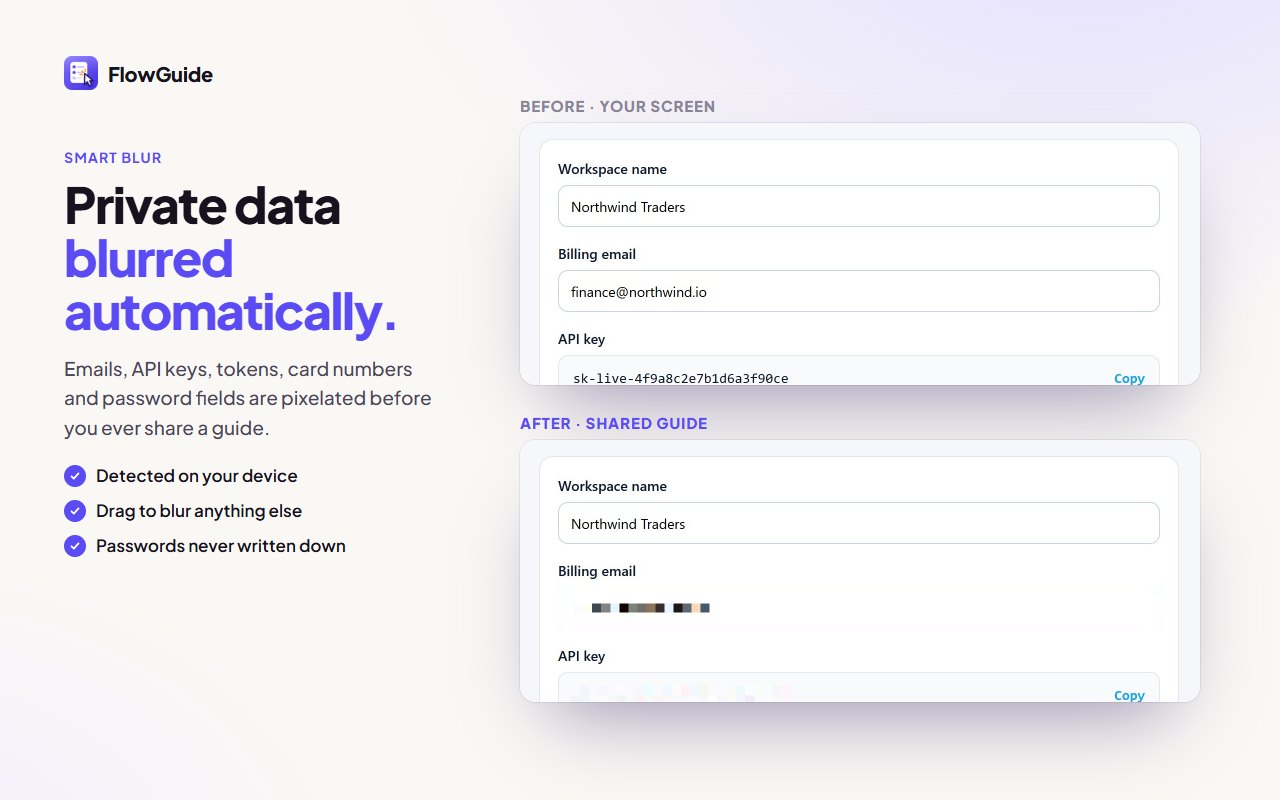
Emails, API keys, tokens, card numbers and password fields are pixelated automatically. Drag over anything else to hide it.
Guide Me
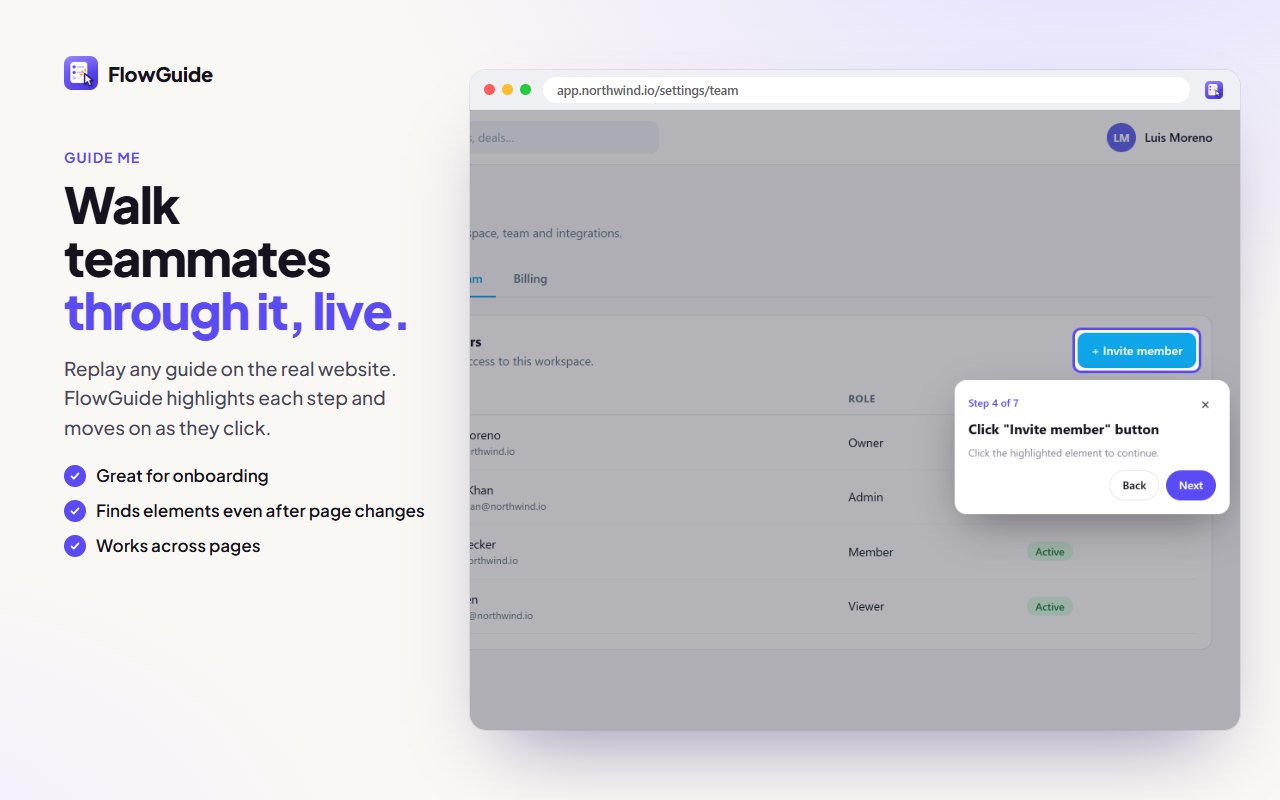
Open a guide on the real website and FlowGuide highlights each step in turn, moving on as you click. Perfect for onboarding.
Export anywhere
A single HTML file, Markdown with an images folder, a PDF or a JSON backup. All generated inside your browser.
AI rewrite, your key
Optionally connect your own OpenAI or Anthropic key to tidy step titles. Only step text is sent; screenshots never leave.
A closer look
Every feature, up close
Private by design
Your screenshots never touch our servers
Most guide tools upload every screenshot to their cloud. FlowGuide doesn't have a cloud. Recording, blurring, editing and exporting all run inside your browser, so internal dashboards and customer data stay where they belong.
Read the privacy policy →- Screenshots
- On your computer
- Account
- Not needed
- Analytics and tracking
- None
- Works offline
- Yes
- AI
- Optional, with your own key
Questions
Where are my guides saved?+
In your Chrome profile on this computer. FlowGuide has no servers, so nothing is uploaded and there's no account to create. Removing the extension removes your guides, so export anything you want to keep.
Does it record my passwords?+
No. Passwords and fields that look like card numbers, security codes or tokens are never written into step titles, and they are blurred on the screenshot. You can also hide every typed value in Settings.
Is FlowGuide always watching what I do?+
No. It only records between Start and Stop, and the toolbar icon shows a red REC badge the whole time. When you're not recording it does nothing.
Do I need an AI key?+
No. Step titles are written automatically without AI. The AI rewrite is an optional extra if you want friendlier wording.
Which browsers are supported?+
Google Chrome version 123 or newer. Other Chromium-based browsers may work, but Chrome is the one we test and support.
Read the FlowGuide Privacy Policy.